Designing Rule Model
- Log in to supOS, and then select Data Intelligence > Data Science > Rule Base > Rule Design.
- Click Add > Add rule set to add a rule set.
- Select the rule, and then click Add rule.
- Start setting the rule.
- If: Set the condition of the rule.
- Click the operator, and select Or from the drop-down list to change the relationship between multiple conditions.
- Click the operator, and select Add condition or Add union condition from the drop-down list to add more conditions.
- Click Select type, and select from Variable, Method or Input value to set the value on both sides of the Comparison operator.
- Then: Click Add action, and click Action type to set the actions for variables that conform to the conditions.
- Assign and update: Select variables, assign a value to it and update.
- Print log: Print the selected variables in the log.
- Else: Set the actions for values that do not meet the requirements.
info
In this section, a simple example is used to demonstrate the process of rule configuration.
- When the value of field age is larger than that of id1, assign the value of id1 to age.
- When the value of field age is smaller than or equal to that of id1, assign the value of id2 to age. For the rule to work, 3 fields named age, id1 and id2 need to be created under Data Object.
- Click
 to add data objects.
- Next to If, click Select type and set it to the variable field age.
- Set the Comparison operator to >, and the field to id1.
- Next to Then, click Add action > Action type, set it to Assign and update and the value equation is age = id1.
- Next to Else, click Add action > Action type, set it to Assign and update and the value equation is age = id2.

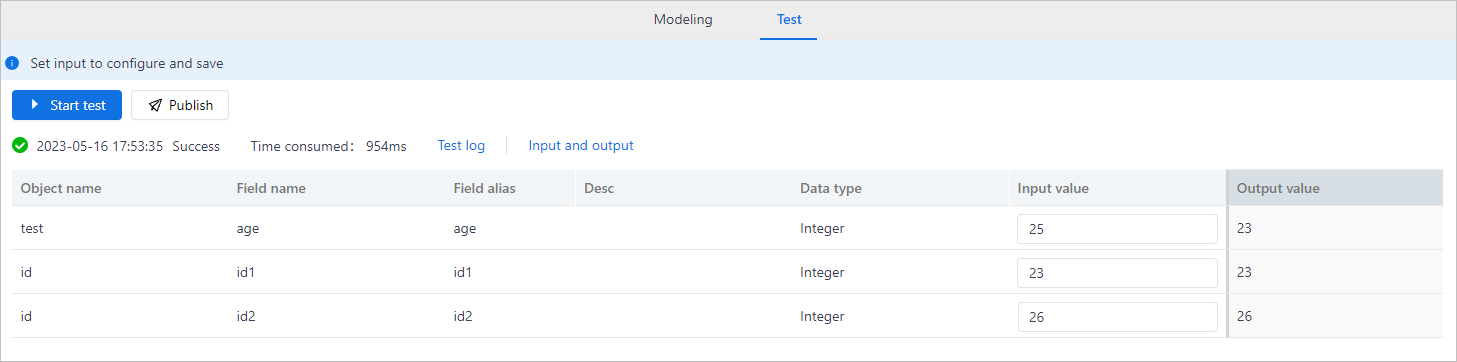
- Click Save, and then click the Test tab.
- Enter the input value of each field, and then click Start test.
- Check whether the output values are correct, and then click Publish.